How to Secure Your New Smartphone Before Christmas: Accounts, Updates, Backups and Privacy
A new smartphone is exciting, especially during the busy Christmas shopping season, but it should not become your main device before you secure it. On 24 November 2026, many people are buying phones during Black Friday and Cyber Monday deals, preparing gifts or replacing an older device before the holidays. A few careful steps now can protect your accounts, photos, payment information and private messages throughout the festive season.
Security is not only about installing an antivirus app. It starts with checking where the phone came from, continues with strong account protection and includes reliable backups, sensible privacy settings and scam awareness. The following guide is suitable for a new iPhone or Android phone, whether you are keeping it for yourself or preparing it as a Christmas gift.
Start With a Clean, Verified Setup Before Christmas
Before signing in or transferring personal data, confirm that the smartphone is genuine and has not been modified. This is especially important when buying from a marketplace seller, an unfamiliar online shop or a private individual offering an unusually large discount. A low price can sometimes hide a refurbished, stolen, counterfeit or previously compromised device.
Check the retailer, invoice and return policy first. The packaging should look professionally sealed, although a seal alone does not prove that a phone is new. Compare the model name, storage capacity, colour and serial number on the box with the information shown in the phone’s settings. On many devices, you can find the IMEI by opening the About Phone or General Information menu. The IMEI should match the box and purchase documentation.
Do not enter your Apple Account or Google Account until the initial setup looks normal. The operating system should be the genuine version supplied by Apple or the phone manufacturer. Be cautious if the device displays unexpected administrator profiles, unknown management software, unusual advertisements or apps you did not install. A company-owned phone may have legitimate management controls, but a privately purchased device should not normally be controlled by an unknown organisation.
During setup, choose the correct region, language and time zone. Review the privacy screens instead of accepting every option automatically. You can normally decide whether to share diagnostics, allow personalised advertising, enable location history or participate in usage analytics. These choices can be changed later, but the first setup is a good opportunity to avoid unnecessary data sharing.
Lock Down Your Apple or Google Account
Your Apple Account or Google Account is the control centre for the new phone. It may contain contacts, cloud backups, photos, passwords, app purchases, location data and payment information. If someone takes control of this account, changing the phone’s screen PIN may not be enough to protect you.
Use a long, unique password that you do not use on any other website. A password manager can create and store a strong password, while modern passkeys can provide a convenient alternative on supported services. Avoid passwords based on your name, birthday, pet, favourite football club or Christmas-related words, because these details may be easy to guess or discover through social media.
Enable two-factor authentication as soon as possible. Authenticator apps and hardware security keys are usually stronger choices than text messages, although SMS protection is still better than having no second factor. Save the account recovery codes offline or in a trusted password manager. Do not store the only copy inside the phone if you might lose access to that phone.
Open the account security dashboard and review every trusted device, active session and recovery method. Remove old phones, tablets and computers that you no longer own. Check that the recovery email and telephone number still belong to you. If you receive a sign-in alert that you do not recognise, change the password from an official account page and investigate before continuing setup.
Wait before adding payment cards or Christmas shopping accounts if the phone’s account security is incomplete. A secure main account creates a safer foundation for banking apps, online retailers, digital wallets and gift-card purchases. It also makes it easier to recover the phone after accidental damage or theft.
Install Updates and Secure Everyday Access
New phones can spend months in a warehouse before reaching a buyer, so they may not contain the latest operating system or security updates. Connect to a trusted home network, check for updates and install them before transferring sensitive information. Update the operating system, manufacturer services and apps from official stores only.
Turn on automatic updates where the phone allows it. Automatic patching reduces the chance that you will ignore an important fix during the busy Christmas period. Some major updates require a restart, so check the phone occasionally rather than assuming everything happens instantly. Keep enough free storage available for updates to download and install correctly.
Protect everyday access with a strong PIN or password. A six-digit PIN is safer than a four-digit code, while an alphanumeric password provides even stronger protection if you are comfortable entering it. Biometrics such as Face ID or a fingerprint reader make secure access easier, but they should support a strong passcode rather than replace it.
Turn on the phone’s lost-device features. Apple’s Find My service and Google’s Find My Device tools can help locate, lock or erase a missing phone. Confirm that location services, network access and the relevant account connection are enabled. Test the feature from another trusted device or web browser so you know where the controls are before an emergency happens.
Review lock-screen options as well. You may want to hide message previews, prevent access to control panels while locked and disable quick payment shortcuts if you are worried about someone using the phone in your hand. These settings make notifications less convenient, but they reduce the amount of private information visible to strangers.
Want to compare the most useful security and hardware features before choosing a phone? Read our practical guide to modern phone features to check before you buy.
Move Data Safely and Build a Recovery Plan
Do not erase or trade in your old phone until the new one has been fully checked. Start by creating an encrypted backup. iPhones can use iCloud or an encrypted computer backup, while Android phones can use Google backup and, depending on the manufacturer, an additional official transfer tool. Encryption is important because a backup may contain messages, contacts, health information and private photos.
Use the transfer method built into the operating system or supplied by the phone manufacturer. Avoid random third-party tools that request access to every message, photo and contact. Transfer contacts, calendars, photos, messages and authenticator accounts carefully, then open important files on the new device to confirm that they are not merely listed but actually available.
Two-factor authentication needs special attention during migration. If your codes are stored in an authenticator app, confirm that the app supports a secure transfer or cloud backup before resetting the old phone. Some services require you to scan a new QR code or register the replacement device. Keep recovery codes accessible while you complete this process.
Test restoration instead of assuming that a backup works. Open several older photos, search for important contacts, check recent messages and confirm that notes and calendars have transferred. If you rely on work files, travel documents, medical information or family records, make sure those files can be downloaded and opened without the old phone.
Only after this verification should you factory-reset the old device. Sign out of your accounts, remove payment cards, disable device locks where required for trade-in and erase all content. If the old phone is being given to a family member for Christmas, do not simply create a new user profile over your own data. Perform a complete reset first.
Protect Privacy During Holiday Shopping and Sharing
Christmas brings more online shopping, delivery notifications, digital receipts and social sharing. Review app permissions before installing shopping, delivery, coupon or gift-card applications. A shopping app may need notification access, but it should not automatically need your microphone, contacts or precise location. Set location permission to “while using the app” when continuous access is unnecessary.
Turn off advertising identifiers and unnecessary personalised tracking in the phone’s privacy settings. You do not need to disable every useful feature, but you should understand what each permission does. A weather app that requests constant access to contacts, for example, deserves closer inspection. Remove permissions from apps you no longer use and uninstall applications that have no clear purpose.
Lock-screen previews deserve extra attention during the holidays. A delivery message can reveal your address, an account alert can expose part of a password reset link and a family message may contain private information. Hide sensitive previews or require authentication before showing full notifications.
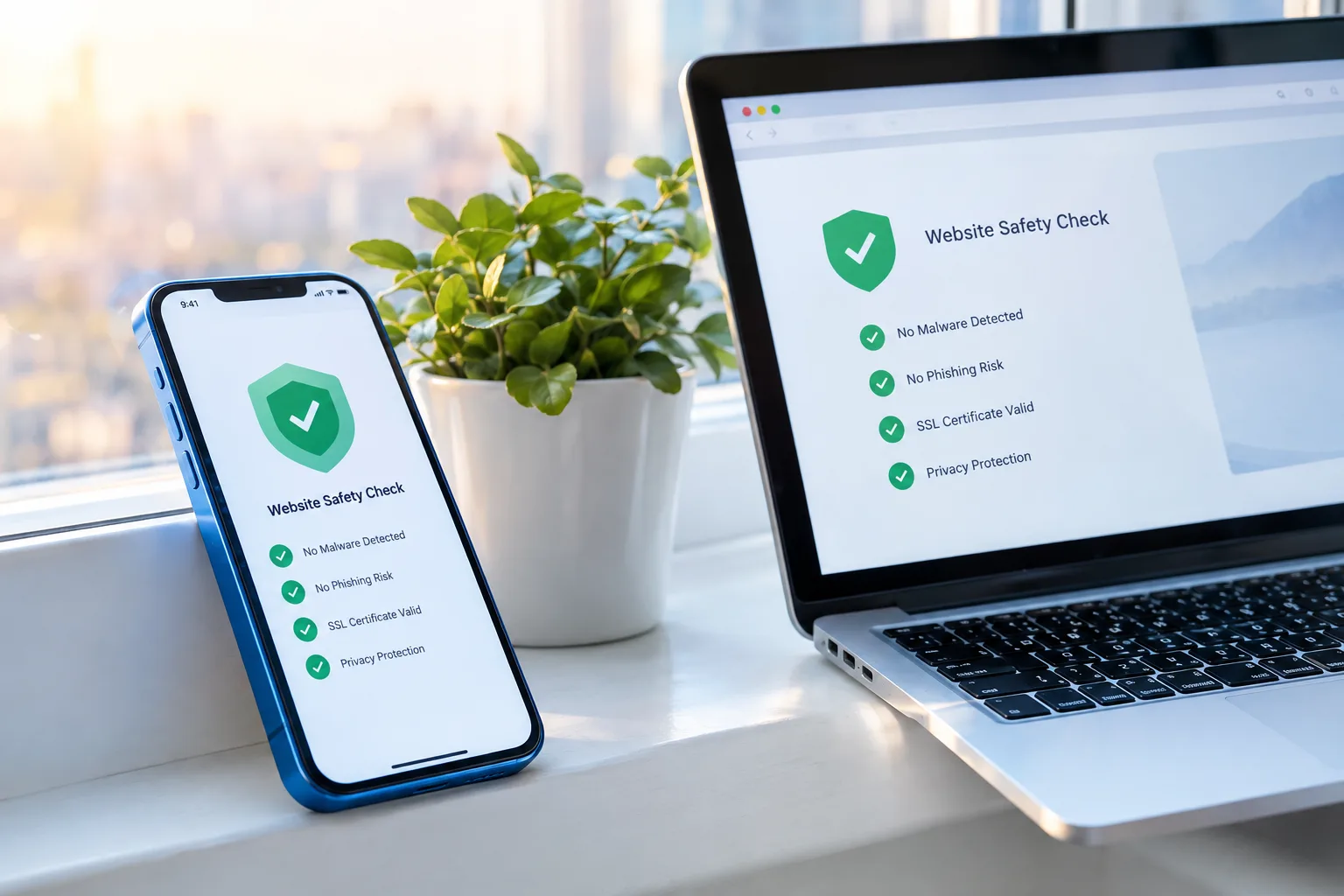
Be careful with Christmas delivery scams. Fraudulent messages often claim that a parcel is delayed, a small customs fee is unpaid or an address must be confirmed immediately. Instead of clicking the included link, open the retailer or courier app directly and check the order there. The same rule applies to fake gift-card promotions, prize messages and urgent banking alerts.
Malicious QR codes can appear on posters, emails, printed cards and fake payment requests. A QR code is simply a shortcut to a website, not proof that the destination is safe. Check the web address before entering credentials or payment details. Avoid downloading an app from a QR code when the official App Store or Google Play listing is available.
Public Wi-Fi can be useful during Christmas travel, but avoid banking or account recovery on an open network. Use mobile data or a trusted VPN when appropriate, and turn off automatic connection to unfamiliar networks. You can find more seasonal device safety advice in our guide to Christmas travel with electronics in 2026.
Use a Christmas-Ready Smartphone Security Checklist
Before the phone becomes your everyday device or a wrapped Christmas gift, complete one final review. The checklist below is short enough to use on 24 December, but it covers the protections that are most often forgotten.
- Confirm that the seller, receipt, packaging, serial number and IMEI are consistent.
- Check that the phone runs a genuine operating system without unknown management profiles.
- Install operating-system, security and app updates before signing into sensitive services.
- Use a unique Apple Account or Google Account password, passkey or password-manager entry.
- Enable two-factor authentication and save recovery codes in a secure location.
- Review trusted devices, active sessions, recovery email addresses and telephone numbers.
- Set a strong PIN or password, then activate fingerprint or face authentication if suitable.
- Enable lost-device location, remote locking and remote-wipe features.
- Create an encrypted backup and verify that essential photos, contacts and files transfer correctly.
- Check authenticator apps and recovery methods before erasing the old phone.
- Review app permissions, tracking settings, lock-screen previews and automatic Wi-Fi connections.
- Recognise that delivery links, gift-card offers, QR codes and urgent payment messages may be scams.
If the smartphone is a gift, complete security updates but let the recipient create their own account and passcode. Do not set up a family member’s private account using your email address or your recovery number unless you are intentionally managing the device. Explain the basics of updates, backups, lost-device tracking and scam messages when you hand over the gift.
Verdict
Securing a new smartphone before Christmas does not require advanced technical knowledge. Verify the device, protect the Apple or Google Account, install updates, use a strong lock and confirm that backups can be restored. Then review privacy settings and treat festive delivery messages, gift-card links and QR codes with caution.
The best time to prepare is before the phone holds your photos, payment cards and personal conversations. Spending 30 to 60 minutes on setup in late November or early December can prevent much greater stress during the holidays and make the new device safer from its very first day.