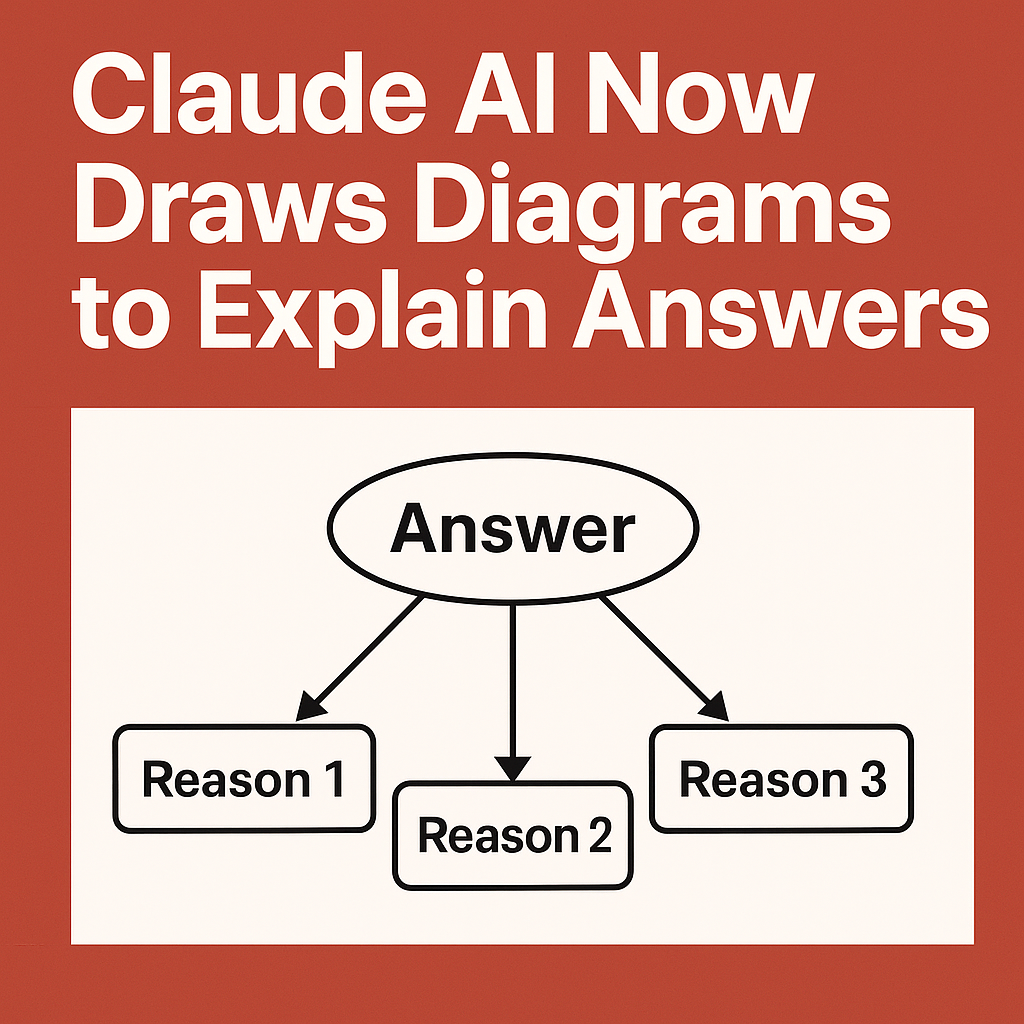
Claude AI is taking a notable step forward in how chatbots communicate: it can now draw diagrams to explain answers, according to reports highlighted by NewsBytes. Instead of relying solely on text, Claude can generate simple visual layouts—such as flowcharts, system overviews, and relationship maps—that make complex topics easier to follow. This update matters for everyday users who want quicker understanding, and for professionals who need clearer documentation, planning artifacts, and shareable explanations.
What the NewsBytes report suggests about Claude’s new diagram capability
NewsBytes reports that Claude AI can now create diagrams to support its responses, expanding beyond purely written explanations. In practice, this means Claude can produce structured visuals that represent processes, hierarchies, connections, and decision paths. For people who learn visually—or for teams who need concise artifacts to communicate ideas—diagram-based explanations can reduce ambiguity and speed up comprehension.
While “drawing” can mean different things across AI tools, this capability typically refers to generating diagram markup (such as Mermaid) or producing a neatly formatted visual representation that can be rendered in compatible viewers. The core value is that the model can translate an answer into a visual model of the same concept.
Why diagrams in an AI chatbot are a big deal
Text is powerful, but it can become dense when explaining processes, software architectures, workflows, or multi-step reasoning. Diagrams compress complexity. When an AI can create them on demand, users can move from a vague concept to an actionable plan faster.
Diagrams reduce cognitive load
Many topics—like troubleshooting sequences, approval workflows, or network layouts—are naturally visual. A diagram makes relationships obvious, so users spend less time parsing paragraphs and more time making decisions.
They make AI explanations more “shareable”
A diagram can be pasted into documentation, a project brief, or a team chat. Instead of forwarding a long answer, a user can share a single visual that captures the essentials.
They improve alignment in teams
Misalignment happens when people interpret text differently. A flowchart or system diagram creates a shared reference point, helping product teams, engineers, analysts, and stakeholders agree on the same structure.
Common diagram types Claude AI can generate
Claude’s diagramming feature is especially useful for a handful of common visual formats. These diagrams can serve as quick drafts, starting points for deeper design work, or lightweight documentation for internal use.
Flowcharts for processes and decision-making
Flowcharts are ideal for breaking down procedures, user journeys, troubleshooting steps, and decision trees. For example, a support team might use a flowchart for handling payment failures, while an HR team might map onboarding steps.
System architecture diagrams
Architecture diagrams show how components interact—frontend, backend services, databases, message queues, and external APIs. A well-labeled diagram can clarify dependencies and data flow in a way text often cannot.
Sequence diagrams for interactions over time
Sequence diagrams are useful for illustrating how services talk to each other during a request: authentication, validation, database calls, and responses. They help engineers and QA teams understand integration points and failure modes.
Mind maps and concept maps
For learning, brainstorming, and planning, mind maps help users explore categories, subtopics, and relationships. Claude can turn a long explanation into a compact map of key ideas.
Org charts and hierarchies
Hierarchical diagrams are helpful for company structures, taxonomies, site navigation, permission models, and role-based access control. A single hierarchy can eliminate confusion about levels and ownership.
Real-world use cases: who benefits most
Diagram generation is not just a novelty. It fits into workflows across business, education, and software development—particularly where communication and clarity matter.
Students and educators
Teachers can create diagrams to explain scientific processes, historical timelines, grammar structures, or math problem-solving steps. Students can request a concept map to study faster or a flowchart to understand an algorithm.
Product managers and business analysts
Requirements often involve flows: sign-up, checkout, approvals, notifications, and permissions. A PM can ask Claude to visualize a new feature’s user journey or map edge cases in a decision tree.
Software developers and DevOps teams
Engineers can use diagrams for architecture drafts, migration plans, incident postmortems, and integration documentation. DevOps teams can visualize deployment pipelines, monitoring loops, or rollback strategies.
Customer support and operations
Support teams can generate troubleshooting trees and escalation paths, turning tribal knowledge into standardized workflows. Operations teams can map handoffs, SLAs, and compliance steps.
Marketing, sales, and training
Enablement materials often need simple visuals: funnel stages, lead qualification steps, pricing packaging, or onboarding sequences. Diagrams can make training content clearer and easier to retain.
How Claude AI diagramming compares to typical AI text answers
Traditional AI chat responses can be accurate yet still hard to apply. Diagrams shift the output from explanation to representation, which can be more actionable. When you see a workflow drawn out, missing steps and unclear transitions stand out instantly.
Another advantage is structure. Diagrams force the model to commit to explicit nodes and links. That can help reduce vague phrasing and reveal where assumptions are being made.
How to prompt Claude for better diagrams
To get high-quality diagrams, your prompt should specify the purpose, diagram type, level of detail, and any constraints (such as the number of steps or the audience). Clear prompting helps Claude choose the right abstraction.
Best practices for diagram prompts
- Specify the diagram type: Ask for a flowchart, sequence diagram, architecture diagram, mind map, or hierarchy.
- Define the scope: Mention what to include and what to exclude (for example, “only the payment and refund flow”).
- Set the level: Request “high-level” for stakeholders or “detailed” for implementation.
- Name the entities: Provide system components, roles, or services you want represented.
- Ask for labels: Request labeled arrows, decision conditions, and clear step names.
- Request editable output: Ask for Mermaid syntax if you want to paste into docs and iterate.
Example prompts you can adapt
- “Create a flowchart showing the customer login process with MFA, including failure paths and account lockout.”
- “Draw a high-level architecture diagram for a web app with React frontend, Node API, Postgres DB, Redis cache, and a payment provider.”
- “Generate a sequence diagram for ‘Place Order’ from mobile app to backend services, including inventory check and payment authorization.”
- “Make a mind map summarizing the main concepts of photosynthesis for a high school class.”
Limits to keep in mind when using AI-generated diagrams
Even when diagramming is helpful, it is not a substitute for verification. AI diagrams can contain missing steps, incorrect relationships, or oversimplified assumptions—especially if the prompt lacks detail.
Potential accuracy and completeness issues
If you’re documenting an actual system, validate each component and connection. AI may infer typical architectures and add elements you didn’t mention, or omit edge-case flows that matter for reliability and security.
Overconfidence in visual clarity
A diagram can look “clean” while still being wrong. Visual polish should not be confused with correctness. Treat diagrams as drafts that accelerate thinking, not final authority.
Security and privacy considerations
Be careful about including proprietary architecture details, customer data, or sensitive internal processes. If you are using Claude in a workplace setting, follow your organization’s policies regarding data sharing and retention.
What this update signals about the future of AI assistants
Claude’s ability to draw diagrams reflects a broader shift: AI assistants are moving toward multimodal communication and more structured outputs. The goal isn’t just answering questions—it’s helping users build artifacts they can use in the real world, such as documentation, planning diagrams, and decision models.
As these capabilities mature, expect chatbots to produce richer deliverables: diagrams paired with text explanations, step-by-step plans linked to visuals, and outputs tailored for specific tools and workflows. For users, this means less time translating ideas into formats others can understand.
How to use Claude’s diagrams in documents and workflows
To get practical value, you’ll want to integrate diagrams into your existing toolchain. Depending on the output format, you may be able to paste directly into knowledge bases, engineering docs, wikis, or slide decks.
Practical ways to reuse diagram outputs
- Documentation: Add diagrams to product requirement docs (PRDs), runbooks, incident reports, and onboarding guides.
- Collaboration: Share diagrams in team chats to align on a process before a meeting.
- Planning: Use diagrams as a starting point for roadmap discussions or architectural reviews.
- Training: Convert complex SOPs into flowcharts for faster learning and fewer mistakes.
FAQs
What does it mean that Claude AI “draws diagrams”?
It means Claude can generate a structured visual representation—such as a flowchart, architecture diagram, or sequence diagram—to accompany or replace a text explanation. Often, this is delivered as diagram markup (for example, Mermaid) that can be rendered into a visual diagram.
What kinds of diagrams are most useful with Claude AI?
Flowcharts, decision trees, system architecture diagrams, sequence diagrams, mind maps, and hierarchies are among the most useful. They help explain processes, relationships between components, and step-by-step interactions.
How can I prompt Claude to create an accurate diagram?
Provide the diagram type, scope, and key entities. Specify whether you want a high-level overview or a detailed technical diagram, and ask for labeled steps and decision conditions. If you plan to edit it, request Mermaid syntax.
Are AI-generated diagrams reliable for technical documentation?
They are best treated as drafts. AI can make incorrect assumptions or omit edge cases, so you should verify components, flows, and constraints—especially for security, compliance, and production systems.
Why is this feature important compared to regular AI chat answers?
Diagrams make complex answers easier to understand and share. They reduce ambiguity, reveal missing steps, and help teams align faster than text-only explanations—especially for workflows, architectures, and decision-making.