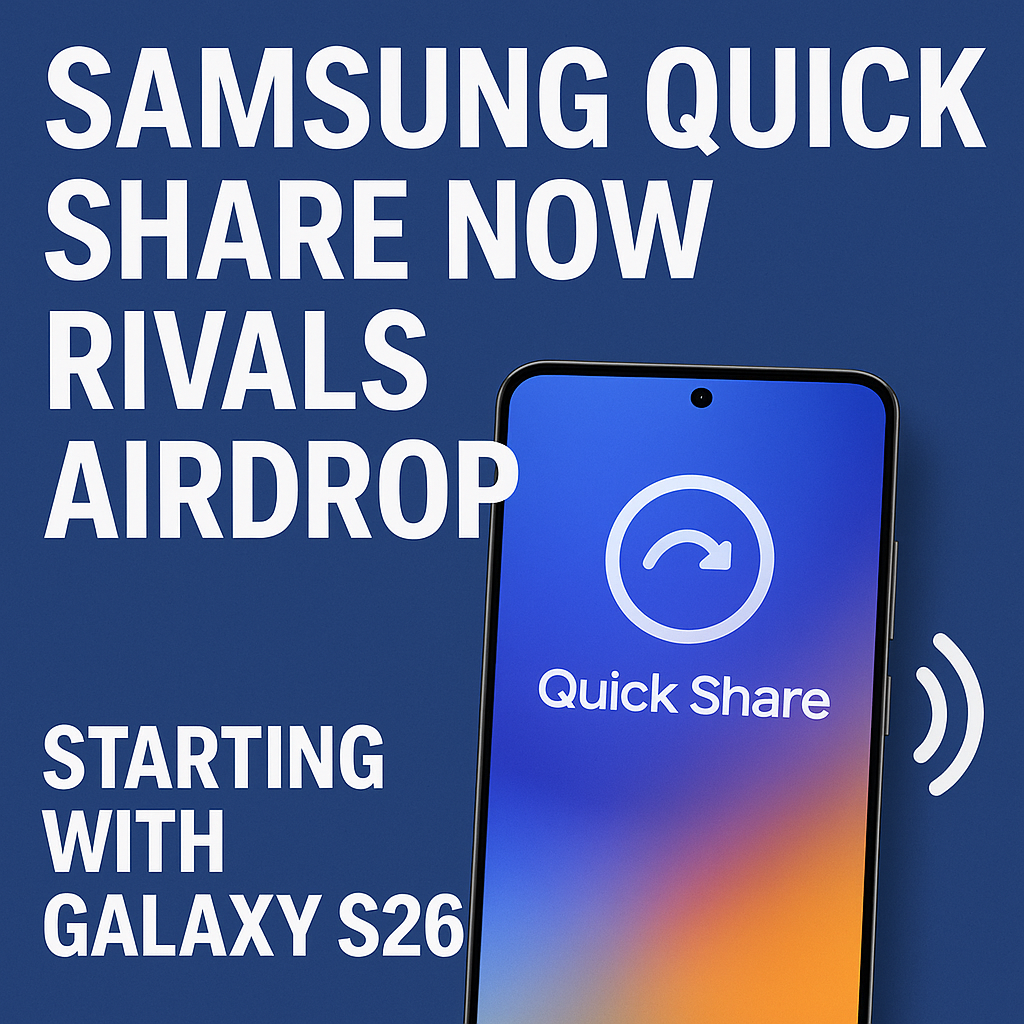
Samsung’s file-sharing story is entering a new era. With the Galaxy S26 generation, Quick Share is no longer just a convenient way to send photos to friends—it’s shaping up as a true AirDrop rival, built into the flow of One UI and designed to be fast, reliable, and privacy-forward. For years, Apple’s AirDrop set the bar for effortless nearby sharing. Now Samsung is positioning Quick Share as a comparable, everyday tool for Galaxy users, especially as more people expect instant transfers across phones, tablets, laptops, and even mixed-device environments.
This shift isn’t just about speed. The biggest change is that Quick Share on Galaxy S26 feels less like a “feature you open” and more like a native capability that appears exactly when you need it. Samsung is emphasizing seamless discovery, smarter device targeting, improved transfer stability, and broader device compatibility—areas that historically made AirDrop feel magical. If you’re considering the Galaxy S26, or you already live in the Samsung ecosystem, Quick Share may become one of the most-used features on your device.
Why Quick Share matters more than ever on Galaxy S26
Modern smartphones generate massive amounts of content—4K/8K videos, RAW photos, large PDFs, app projects, and gigabytes of documents. Messaging apps compress media, email has attachment limits, and cloud links can be slow or require logins. That’s why local, peer-to-peer sharing remains essential: it’s fast, it preserves quality, and it works even when the internet is unreliable.
With the Galaxy S26, Samsung is treating Quick Share as a core productivity and lifestyle tool, not a nice-to-have. The goal is simple: make sharing files as natural as tapping “Share,” choosing a nearby device, and watching it arrive in seconds—no cables, no third-party apps, no friction.
Quick Share vs AirDrop: what Galaxy S26 is aiming to match (and beat)
AirDrop works so well because it blends into the Apple ecosystem: it’s easy to discover, quick to confirm, and dependable across iPhone, iPad, and Mac. Samsung’s Quick Share has long offered similar fundamentals, but the Galaxy S26 generation is where the experience becomes truly competitive in the moments that matter—finding the right device, staying connected, and transferring quickly even with large files.
1) Faster, more stable transfers for large files
One of the biggest pain points in any wireless sharing tool is inconsistency—especially with big videos or folders. Galaxy S26-class hardware and software optimization help Quick Share sustain higher transfer performance, maintaining a strong connection between devices and reducing the odds of failed sends or stalled progress bars.
While real-world speed always depends on environment and device pairing, the direction is clear: Quick Share is being tuned for modern content sizes, not the smaller attachments of a decade ago.
2) Better device discovery and smarter suggestions
AirDrop feels instant largely because it surfaces the “right” devices at the right time. With Galaxy S26, Quick Share’s discovery is designed to feel more predictable and more context-aware—surfacing nearby Galaxy devices you actually own or frequently share with, and minimizing clutter from unknown devices (when you want it to).
That means less scanning, fewer wrong taps, and less time wondering why a target device isn’t appearing.
3) A smoother “Share sheet” experience in One UI
The less you think about the tool, the better it is. Samsung’s approach is to make Quick Share feel native in the Android sharing flow, so you can send from Gallery, Files, browser downloads, Notes, third-party apps, and creative tools without jumping between menus.
On Galaxy S26, Quick Share is positioned to show up more consistently and with clearer device labels, making it feel like a built-in extension of the share button—similar to how AirDrop is embedded in iOS and macOS sharing menus.
What makes Quick Share on Galaxy S26 feel “AirDrop-level”
The competition between Quick Share and AirDrop isn’t about a single feature. It’s about the overall experience: trust, clarity, and speed. Samsung’s recent push signals that Quick Share is moving closer to that standard through a combination of user experience upgrades and ecosystem integration.
More seamless Galaxy ecosystem sharing
Quick Share is at its best when your devices work together: phone to tablet for photos, phone to laptop for documents, tablet to phone for downloads, and so on. Starting with Galaxy S26, the experience increasingly feels like one continuous workspace across devices rather than isolated transfers.
For users with a Galaxy phone, Galaxy Tab, and a compatible Windows PC, Quick Share can become the default “handoff” mechanism for quick movement of files—like tossing something from one screen to another.
More control over visibility and privacy
Nearby sharing is only convenient if it’s also safe. AirDrop users are familiar with visibility settings like “Contacts Only.” Samsung’s Quick Share offers similar ideas: controlling who can find you, limiting discoverability, and reducing the chance of receiving unwanted requests.
On Galaxy S26, expect Quick Share to emphasize security and comfort—so you can keep it ready without worrying about random devices in public spaces.
Improved reliability across real-world conditions
Wireless file transfer sounds simple, but it has to handle crowded Wi‑Fi environments, Bluetooth interference, device sleep states, and background power management. As Samsung refines One UI on the Galaxy S26 lineup, Quick Share is being shaped into a more “set it and forget it” tool that works consistently at home, in an office, or at a café.
Best use cases: where Quick Share on Galaxy S26 shines
If you’ve never used nearby sharing much, the Galaxy S26 generation may change your habits. Quick Share is at its most valuable when you need quality, speed, or simplicity—especially when cloud workflows get in the way.
- Sharing full-quality photos and videos without compression from messaging apps
- Sending long 4K/8K clips quickly to a tablet for editing or a friend for posting
- Moving PDFs, slides, and spreadsheets between your phone and laptop right before a meeting
- Transferring folders of assets for design, social media, or client work
- Sharing offline when cellular is weak or Wi‑Fi is unreliable
How to get the best Quick Share experience on Galaxy S26
You don’t need to be a power user to benefit from Quick Share, but a few settings and habits can make it feel dramatically more “AirDrop-like.”
Keep visibility set appropriately
If you share often with the same people or devices, choose a visibility mode that makes discovery easy without opening you up to everyone nearby. In crowded places, a more restrictive setting can reduce interruptions and keep your device list cleaner.
Use clear device names
Rename your Galaxy S26, tablet, and PC to something recognizable. This small step reduces mis-sends and speeds up device selection—especially if multiple Samsung devices are in the same room.
Send from the app you’re already in
Quick Share works best when you treat it as a default share target. Send directly from Gallery, Files, or your editing app rather than exporting to another app first. The fewer steps, the more it feels like AirDrop.
Stay updated on One UI and Quick Share components
Samsung regularly improves system apps and sharing components through updates. Keeping your Galaxy S26 updated helps ensure you get the newest reliability and compatibility improvements.
Does Quick Share replace cloud sharing?
Not entirely—and it shouldn’t. Cloud links are still perfect for sharing with large groups, collaborating over time, or sending files to people far away. But Quick Share is the better option when you need speed, quality, and simplicity nearby. In practice, Galaxy S26 users will likely use both: cloud for “share anywhere,” Quick Share for “share right now.”
Quick Share compatibility: who can receive files?
Quick Share is designed primarily for Samsung Galaxy-to-Galaxy sharing, but Samsung has expanded its approach to make nearby sharing more practical across a wider set of devices. Depending on the receiving device, the experience may vary, but the Galaxy S26 generation is clearly focused on making Quick Share a default behavior in Samsung’s ecosystem while reducing barriers to sending files when not everyone has the same phone.
If your household includes Galaxy phones and tablets, the benefits are immediate. If you also use a Windows PC, Quick Share can become a fast bridge between mobile and desktop workflows. For friends on other platforms, you may still rely on links or alternative sharing methods, but Samsung’s improvements aim to make the Galaxy-to-Galaxy path so good that it becomes the standard choice when available.
What this means for buyers: Galaxy S26 feels more “ecosystem complete”
For many shoppers, Apple’s ecosystem has been the reason to stick with iPhone—AirDrop is a surprisingly powerful retention tool because it’s used so frequently. By elevating Quick Share to a true AirDrop rival starting with Galaxy S26, Samsung strengthens the everyday advantages of owning multiple Galaxy devices. The more it “just works,” the more Galaxy feels like a cohesive ecosystem rather than a set of separate products.
That’s also good news for people switching from iPhone to Samsung. A common concern is losing AirDrop. With Galaxy S26, Samsung is signaling that you don’t have to give up that kind of convenience—you can get a comparable nearby sharing experience, tuned for how people actually use phones in 2026.
FAQs
Is Samsung Quick Share on Galaxy S26 basically the same as AirDrop?
Quick Share and AirDrop aim to solve the same problem: fast, local file sharing with minimal steps. With Galaxy S26, Quick Share is close enough in speed and convenience that it can feel like an AirDrop alternative for Galaxy users, especially within the Samsung ecosystem.
Will Quick Share work between Galaxy S26 and a Windows PC?
In many setups, yes—Samsung supports Quick Share workflows that connect Galaxy devices with compatible Windows PCs. The exact experience depends on your PC configuration and Samsung software support, but Galaxy S26 is designed to make phone-to-PC sharing more seamless.
Does Quick Share require internet access?
No. Quick Share is meant for nearby sharing and can work without an internet connection, which makes it useful when Wi‑Fi is unreliable or you want to avoid uploading files to the cloud.
Can I limit who can see my Galaxy S26 in Quick Share?
Yes. Quick Share includes visibility and privacy options so you can reduce discoverability in public or restrict sharing to people you trust, helping prevent unwanted requests.
What types of files can I send with Quick Share on Galaxy S26?
You can typically send photos, videos, documents, and other common file types. It’s especially useful for high-quality media and large files that would be compressed or blocked by messaging apps and email limits.