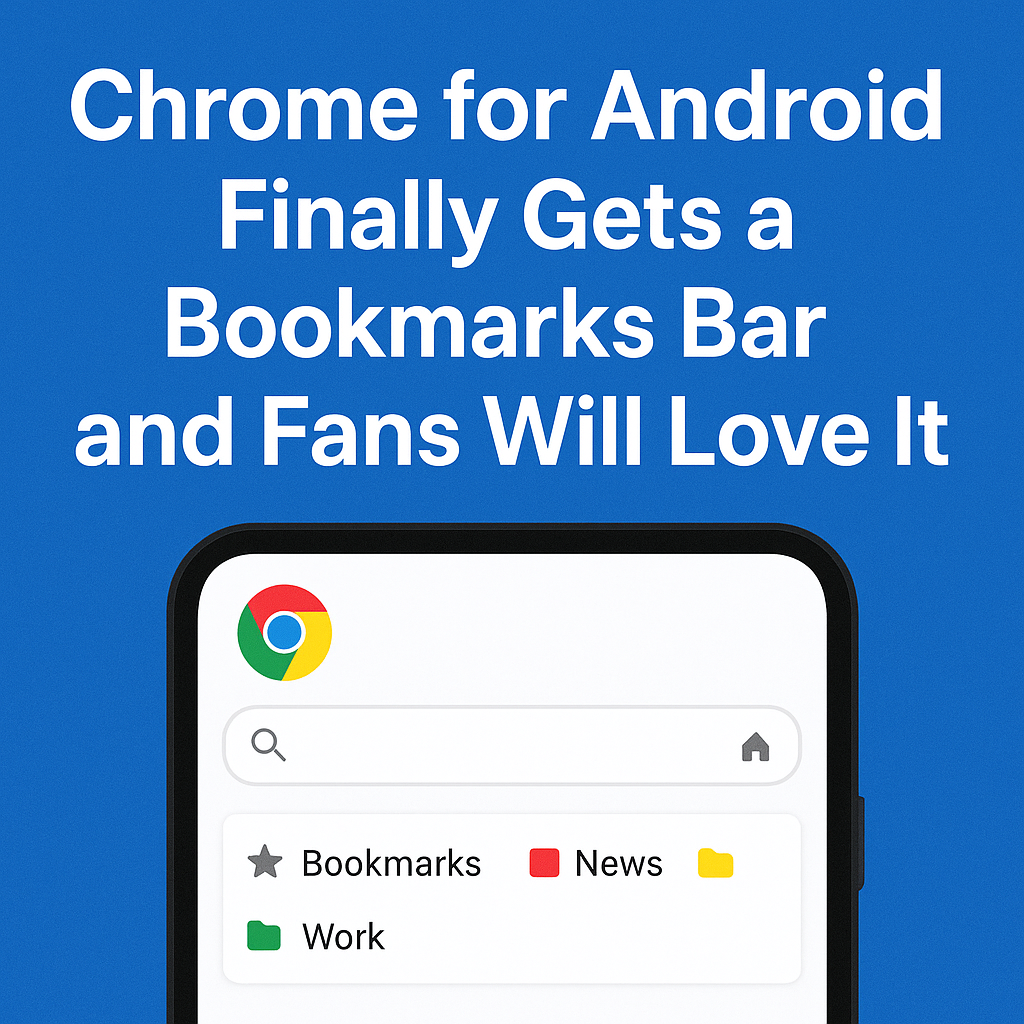
Chrome for Android is finally catching up with a feature desktop users have relied on for years: a dedicated bookmarks bar. For anyone who lives in their browser—jumping between email, docs, shopping lists, and research tabs—the arrival of a bookmarks bar on Android feels like a long overdue quality-of-life upgrade. It’s a small interface change with outsized impact, especially on larger phones and tablets where Chrome is increasingly used like a lightweight productivity hub.
Chrome for Android Adds a Bookmarks Bar: What’s New
The new bookmarks bar in Chrome for Android brings quick-access bookmark shortcuts into a persistent, easy-to-reach area of the browser interface. Instead of diving into the overflow menu or the bookmarks manager, you’ll be able to open your most-used sites with a single tap.
While Chrome on desktop has long offered a bookmarks bar beneath the address bar, Android has traditionally favored a cleaner, minimal UI. That minimalism is great for reading, but it slows you down when you need fast navigation across frequently visited pages. The bookmarks bar changes that equation, making Chrome for Android more efficient for daily browsing and multitasking.
Why This Feature Matters
A bookmarks bar is more than a convenience—it changes how you use the browser. It reduces friction, saves time, and encourages organization. For users who have built a workflow around bookmarks on desktop, it also makes switching between devices feel more consistent.
Why Chrome Fans Are Excited About the Bookmarks Bar
Android users have asked for desktop-like browsing features for years, particularly as phones got bigger and tablets became more capable. The bookmarks bar is an obvious win because it solves a real, frequent problem: too many taps to reach your favorite sites.
- Faster access: One-tap launch to top sites without opening the bookmarks menu.
- Better productivity: Ideal for work and study, where you revisit the same tools repeatedly.
- Cleaner navigation: Fewer context switches and less hunting through nested folders.
- Desktop familiarity: Makes Chrome feel more consistent across Windows, macOS, Linux, and Android.
- Tablet improvement: Particularly valuable on Android tablets and foldables with larger screens.
How the Bookmarks Bar Works on Android
On desktop, the bookmarks bar sits beneath the address bar and can be toggled on or off. On Android, the exact placement may vary by device form factor and Chrome version, but the goal is the same: provide persistent shortcuts to selected bookmarks so you don’t have to dig through menus.
In practical terms, the bookmarks bar will typically display:
- Your most accessible bookmarks (often those placed in a top-level “Bookmarks bar” area or equivalent)
- Favicon-based shortcuts for quick recognition
- Tap-to-open behavior that launches the selected site immediately
What You Can Expect on Phones vs Tablets
Phones have less vertical space, so Chrome’s interface has to balance usability with screen real estate. Tablets and foldables have more room, making them a natural fit for persistent UI elements like a bookmarks bar. If you browse heavily on an Android tablet, this update can make Chrome feel far closer to a desktop browser—especially when paired with a keyboard and trackpad.
How to Enable the Bookmarks Bar in Chrome for Android
Depending on how Google is rolling out the feature, you may see it automatically after updating Chrome, or it may appear as an optional setting (or even as an experimental flag during early availability). If you don’t see it right away, try the following steps:
1) Update Chrome
Open the Google Play Store, search for Chrome, and make sure you’re on the latest version. Feature rollouts often depend on having the newest build.
2) Check Chrome Settings
In Chrome for Android, open the menu and look for interface or appearance-related settings. If the bookmarks bar toggle is available, it may live there.
3) Look for Experimental Options (If Applicable)
Some Chrome features appear first behind experimental settings. If the bookmarks bar is still being phased in, it may be controlled by a feature flag. If you use flags, remember they can affect stability and may change without notice.
Tips to Get the Most Out of the Chrome Bookmarks Bar
Once you have the bookmarks bar available, a little organization goes a long way. The difference between “nice to have” and “can’t live without” often comes down to how thoughtfully you set it up.
Choose Bookmarks You Use Every Day
The bookmarks bar works best when it’s curated. Add only the sites you truly open multiple times per day—like Gmail, Google Drive, your calendar, your task manager, your bank, or your favorite news source. If everything is on the bar, nothing is quick.
Use Short Names for Cleaner Labels
If Chrome shows text labels alongside icons, shorten bookmark names so they don’t take up unnecessary space. “Google Calendar” can become “Calendar.” “Project Dashboard” can become “Dashboard.”
Create a Folder Strategy That Mirrors Your Workflow
If the Android bookmarks bar supports folders (or shortcuts to folders), consider grouping by activity:
- Work: email, documents, project tools, video meetings
- Finance: banking, budgeting, bills
- Shopping: grocery, Amazon, price trackers
- Reading: saved articles, newsletters, research sources
Sync Bookmarks Across Devices
Chrome’s bookmark sync is the secret sauce. If you’re signed into Chrome with the same Google account on desktop and Android, your bookmarks can carry over. That means the workflow you’ve built on your laptop can finally feel native on your phone or tablet—especially if the bookmarks bar pulls from the same structure.
How This Update Improves Chrome for Android Productivity
Chrome for Android has steadily evolved from a “quick mobile browser” into a serious tool for getting things done. With better tab management, improved password tools, and deeper Google account integration, it’s increasingly common to do real work on mobile devices. A bookmarks bar supports that shift by reducing navigation overhead.
For example, a student researching sources can keep a bookmarks bar pinned with a library portal, citation tool, and notes app. A small business owner can keep quick links to invoices, shipping portals, analytics, and email. The value is cumulative: saving a few seconds dozens of times per day adds up.
How the Bookmarks Bar Compares to Other Android Browsers
Several Android browsers have offered speed-dial pages or shortcut rows for years. What makes Chrome’s bookmarks bar meaningful is how it integrates with your existing Chrome ecosystem—especially if you already use Chrome on desktop.
Bookmarks Bar vs Speed Dial
- Bookmarks bar: Designed for persistent, workflow-style navigation and quick switching.
- Speed dial: Great as a “new tab” launchpad, but not always visible during browsing.
Why Chrome’s Implementation Matters
Chrome dominates Android browsing, so when it adds a long-requested feature, it can change expectations for what “default” browsing should include. For users who prefer Chrome’s sync, password manager integration, and cross-device continuity, the bookmarks bar removes one of the last major convenience gaps compared to desktop.
Potential Downsides and What to Watch For
No interface change is perfect for everyone. A bookmarks bar introduces a trade-off: convenience versus screen space. Some users may prefer a cleaner view, especially on smaller phones.
- Less space for web pages: A persistent bar reduces visible content area.
- UI clutter: Too many bookmarks can make the interface feel busy.
- Rollout inconsistency: Features may appear gradually, and availability can vary by device.
Ideally, Chrome will offer a straightforward toggle so users can enable the bookmarks bar on tablets and larger phones while keeping a minimal layout on compact devices.
What This Means for the Future of Chrome on Android
The arrival of a bookmarks bar suggests Google is taking Android productivity seriously—especially on tablets, foldables, and devices used with keyboards. It also signals a broader trend: mobile browsers are becoming more like desktop browsers, not just in speed, but in workflow features.
If Google continues down this path, we may see more desktop-class capabilities land on Android, including richer tab organization, improved multiwindow behaviors, and more customization options that let users tailor Chrome to their device size and usage style.
FAQs
Is the bookmarks bar available on all Android phones?
Availability can depend on your Chrome version, device type, and Google’s rollout schedule. If you don’t see it yet, update Chrome and check for new settings or interface options.
Will the Chrome for Android bookmarks bar sync with my desktop bookmarks?
If you’re signed into the same Google account and bookmark sync is enabled, your bookmarks should sync across devices. The bookmarks bar may draw from a specific bookmarks location, so organizing bookmarks on desktop can help.
Can I turn off the bookmarks bar if I don’t want it?
In most cases, persistent interface features include a toggle in settings. If Chrome provides an option to disable it, you’ll be able to return to a more minimal browsing layout.
Does the bookmarks bar work better on tablets and foldables?
Yes. Larger screens make persistent UI elements more practical, and the bookmarks bar can significantly improve navigation on Android tablets and foldable devices used in wider layouts.
What should I put on my bookmarks bar for the best experience?
Keep it focused on your most frequently visited sites—email, calendar, docs, task tools, and essential portals. A curated selection delivers the biggest speed benefit and keeps the interface clean.